Before I did anything else on my website i started editing my photos using photoshop.
Before edit-
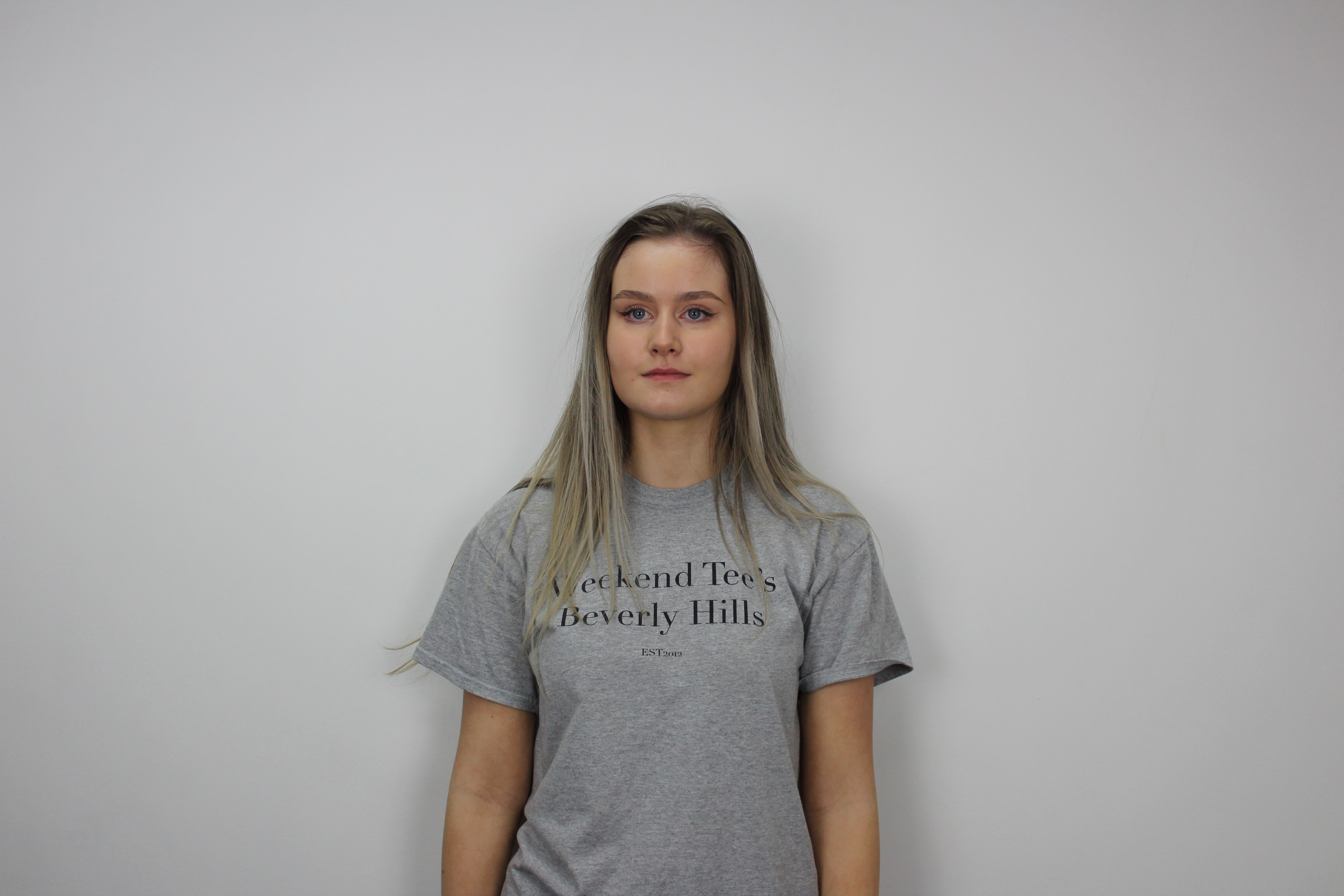
I used the quick selection tool to cut round Sophie.I then created a new page with a white background and moved the cut out over.I used a smaller white brush to go round the edge of the hair and bits that didn’t cut accurately.I then adjusted the ‘Camera Raw filter’ by going onto ‘Filter’.


(I went round the edges of the hair with the paint tool and coloured in white)


Because I made the background fully white I had to change the exposure quite a lot in order to make Sophie look as bright as the background so it would look more realistic.I also changed the ‘Blacks’ to bring out more detail.

Before ^ and after-

I then brightened her eyes.I cut round her eye using the lasso tool and moved into onto a new page.I then adjusted the brightness of the eye and moved it back and placed it over her eye.

This is the difference-

I then uploaded the final photo onto my website homepage.

I put this effect on it as i thought it look Unique and thats the style i’m going for (in the name) as not many clothing websites do anything like this and it makes mine stand out from the other ordinary websites.

For the second picture I did the same technique to get the white background.


I have to use the lasso tool to draw out this gap in his arm then cut out the background in order to make it white like the rest.


For his skin I used the eye dropper tool to get the exact skin colour them painted over the spots and marks on his face.I make the ‘hardness’ really low so it wouldn’t be too noticeable. Here is before and after-


I put the same effect on this photo as well as Sophie because these are both going on my homepage next to each other like so-


For my ‘women’s’ section I used the same Picture as on the homepage of Sophie (without the effect).When you hover over the picture it shows a back view of the t-shirt.To edit this photo I cut Sophie out from the background and moved her over to a new page with a fully white background.I used the rubber tool to go over her hair and other parts that didn’t cut out accurately.This will make it look more professional and realistic.

I didn’t have to do much editing on this photo as its only showing the back of the t-shirt and that is all.
For this next picture I cut her out using the same technique.I then used the brightness and contrast tool to brighten her up a bit so she would match how bright the background now is.

Before and after-


For this photo i found it hard to cut Megan out from the background because the coat is white.I used the Lasso tool to draw round the coat and make the background a brighter colour that the coat will stand out from.

It was then easier to use the quick selection tool. I then used the same technique and dragged the cut photo onto a new bright white background.
I adjusted the brightness and contrast of the photo in order for it to look more realistic. Some parts of her skin didn’t change much for example-

So decided to use the lasso tool to draw out the bit i want to change,I then filled it in using the paint bucket tool like so and just filled in the gap black.


I used the eye dropper tool to pick up a brighter colour from her teeth to them paint over the darker parts in order to whiten them in general. This is before and after-


For this photo the sleeve on the t-shirt was sticking out, to fix this is used the rubber tool and changed the hardness on it to it looked realistic-


 Ellie's Blog